Go to Admin > Settings > Ingredient Settings
What is an Ingredient Type?
An ingredient type is a way of categorizing an ingredient based on what it is. Instead of referring to a specific item (like ginger root), it refers to the broader category or class it belongs to.
For example:
In cooking, ingredient types might be: vegetables, fruits, grains, dairy, spices, herbs, sweeteners, proteins, etc.
In herbalism, ingredient types might be: Raw, Bulk, Tincture, Essential Oil, Spice, Concentrate
An ingredient type lets you group similar ingredients together so you can control when and where they are accessed.
There are 4 ingredient types already setup in your dispensary; Raw, Granule, Tincture, Concentrate
How to Add a NEW Ingredient Type
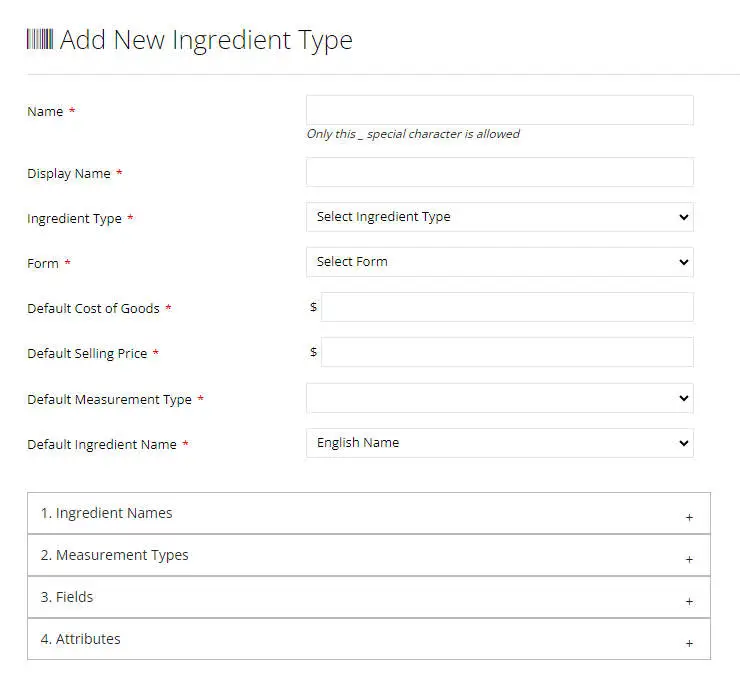
- Click on “Add New” above the ingredient type list table and you will be shown the following screen.
- Enter a name for the ingredient. The only special character you can use is the underscore (_)
- Enter a display name for the ingredient type. This can be the same as the name. An example would be some people call it raw herbs and some call it bulk herbs. You can name it “Raw” but display it as “Bulk”
- Select the ingredient type, we have either single ingredients and premix formulas
- Select the “Form” which is solid or liquid or both.
- Enter a default cost of goods. This is the default cost of goods and will be set as the default for any ingredient you add for this ingredient type.
- Enter a default selling price per unit. This is the default selling price and will be set as the default for any ingredient you add for this ingredient type.
- Select a default measurement types
- Select a default ingredient name
- Then you have 4 sections which can be expanded where you can select specific ingredient name types, measurement types, fields and attributes that you want active for this ingredient type. This means when you create a new ingredient using this ingredient type, these fields/attributes/names/measurements will be associated with the ingredient by default.
- Press Save/Submit
You can also update these settings after the ingredient type is created.