
Add a Simple Product

Go to Admin > Product > Add New Product

This article explains how to add a product manually one at a time.  You can also bulk upload products.  If you want to upload many simple products at once using a CSV(excel) sheet,  please see this article. Click Here


Steps to Add a Simple Product

Click on Add New Product Button and you will be shown the following form.  


Enter the Product SKU#.  If you do not have a SKU#, you can make one up or copy your suppliers SKU#

Choose the Product Status. It should be defaulted to “Publish’, but you can change it to Draft or Pending Review. Only the status “Publish” will enable a user to add it to their cart. 

Select the product Category. The default product category will be auto-selected based on your simple product settings.

Select the product type. This will be either “Products” or if you changed the display name of simple products, it will show your display name instead.

Choose if this product will have variants. For this example, there will be no variants.   You can refer to Adding Simple Products with Variants for information on how to add variants to a product when adding it.  


Product Pricing


Enter the Manual Cost of Goods. This is what you pay to purchase the product.  If you do not know, you can enter anything and update it later.  

Choose an existing Pricing Rule only if you want to use a pricing rule. You can skip this step if you do not want to use pricing rule.  You can click on “Add New Rule” to create a new pricing rule.  

Enter the selling price of the product which is how much the end user will pay for the product.  If you selected a pricing rule, the selling price will be auto-calculated for you based on the rule.


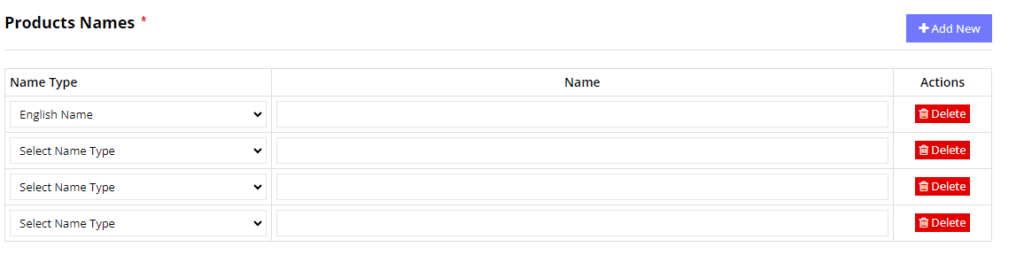
Product Names

Enter at least 1 product name. First choose the name type and then enter the name in the input box. 
 

Complete and Save

Press Continue, and your product will be created.